Wi-Fi drops out. Your VPN comes right back.
TOMOSIA VPN puts the company VPN behind one switch in your Mac’s menu bar. When the connection drops, it reconnects by itself. When something is wrong, it tells you what to fix.
macOS 12+ · Apple Silicon & Intel
TOMOSIA VPN at a glance
1
switch in the menu bar turns the VPN on and off
4
common problems named precisely, each with its fix
0
clicks needed to reconnect after the Wi-Fi drops
Apple Silicon + Intel
Every Mac on macOS 12 or later
Why it exists
The built-in VPN drops out and won’t say why.
The company VPN uses an older kind of connection that the VPN built into macOS handles badly. On office and public Wi-Fi it cuts out, then shows the same vague message whether your password is wrong, the network blocks it or you are offline.
Technical note: the company VPN is L2TP/IPsec with a shared secret.
- Wrong password
- Wrong shared secret
- Network blocks the VPN
- No internet
VPN Connection
- Wrong password
Authentication Failed
- Wrong shared secret
IKE Handshake Failed
- Network blocks the VPN
Server Not Responding
- No internet
Waiting for Network…
Each problem named, with the button that fixes it.
How it works
You work. It keeps you connected.
Turn it on
Click the shield in the menu bar and flip the switch for Office. That is all the setup your day needs.
The Wi-Fi drops
The office Wi-Fi hiccups, or you move to a café. A notification tells you the connection is lost.
It reconnects by itself
TOMOSIA VPN keeps trying until the connection is back, then lets you know. Nothing to click.
It tells you what’s wrong
If it cannot connect, it says why, for example a wrong password, and puts the fix on the button.
What you get
Built for Wi-Fi that drops.
Small things that save you a call to IT.
Comes back on its own
After a drop it keeps retrying and tells you when you are connected again.
macOS notifications when the connection is lost and when it returns.
Errors in plain words
Wrong password, wrong shared secret, a blocked network or no internet: each has its own message and its own fix.
Buttons like Update Password and Try Again take you to the next step.
Nothing slips out
If the VPN drops, internet pauses until it reconnects, so nothing leaves unprotected.
Kill switch, for configurations that send all traffic over the VPN.
Waits out a lost network
No Wi-Fi? It waits, and reconnects as soon as your Mac is back online.
Shows Waiting for Network… instead of failing.
Passwords stay locked away
Your password and shared secret are kept in the macOS Keychain, never in a file.
One Keychain item per secret, removed again when you uninstall.
Setting up
Set it up once, with what IT gives you.
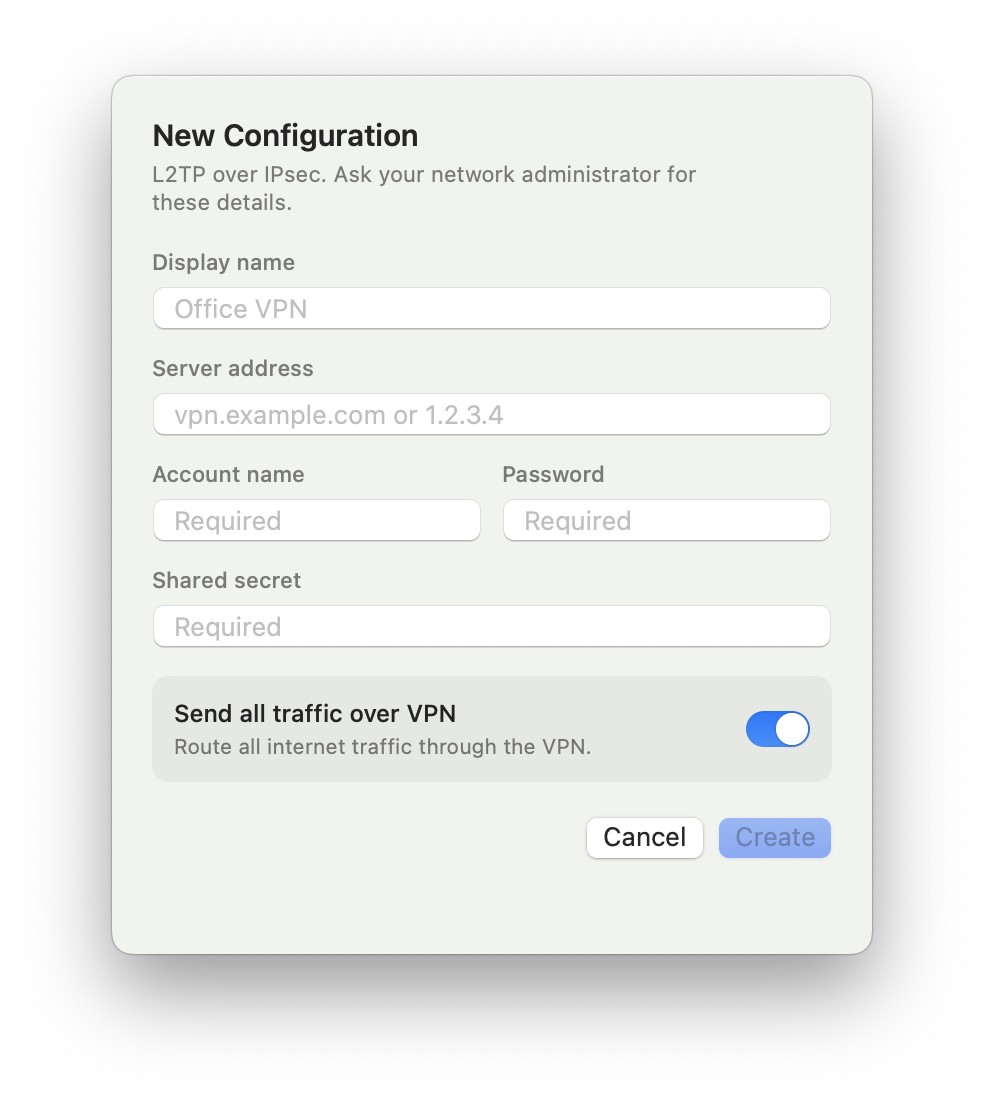
Type in the server, account and shared secret from your administrator. That’s it.
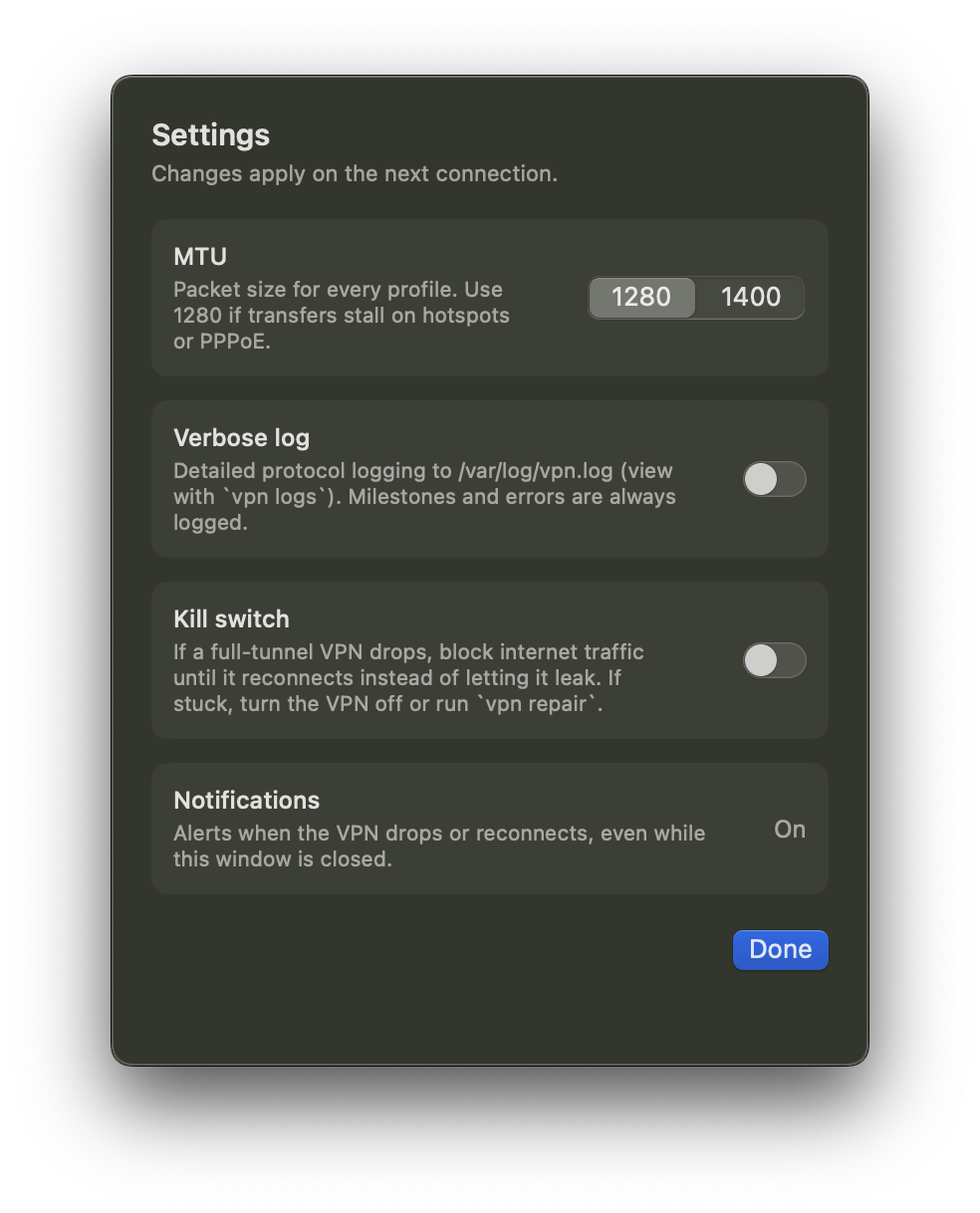
Choose whether internet pauses when the VPN drops, and which notifications you get.
Install
Ready in three steps.
Download
Get TOMOSIA-VPN.dmg.
Drag to Applications
Open the file and drag TOMOSIA VPN into Applications.
Open it
Launch the app. If macOS blocks it, right-click the app and choose Open.
For uninstalling
Run this in Terminal as your normal user. It removes the app, its command-line tool, its settings and the passwords it saved in the Keychain.
curl -fsSL https:/
Stay connected, wherever you work.
Download it, flip the switch and get back to work.
macOS 12+ · Apple Silicon & Intel